
Using our services
Learn how to use our services and get the most out of the product we offer.
Feature codes
Feature codes are numbers dialled from your phone or softphone keypad.
They make it easy to turn on and off regularly used phone system features like; call forwarding, hotdesking, call parking and voicemail management.
Feature codes video
Select the feature below to learn how to use them with your UNIVOX Cloud PBX, softphone application or other voice service.
Call forwarding
Enable Call Forwarding *72
This feature code is used to exclusively enable call forwarding. The default code is “*72”, and when dialled a prompt will ask for the number to forward to. The caller is expected to enter the phone number then press pound, at which point call forwarding is enabled and the number is read back to ensure it wasn’t misdialled. The feature code requires the caller to enter the phone number to forward to each time they use the code. Optionally they can dial the feature code as a prefix on feature code “*7215552489715”, which will enable call forwarding to 15552489715.
Disable Call Forwarding *73
This feature code will disable any active call forwarding. Dialling the code, by default “*73”, plays a prompt to the caller informing them call forwarding has been disabled.
Toggle Call Forwarding *74
This feature code will enable or disable call forwarding depending on if it is active when dialled by default “*74”. Furthermore, this feature code remembers the last number you forwarded to and enables it without asking for a new number. If the caller has never enabled call forwarding then they will be prompted for the number. Like the enable call forwarding feature code, they can optionally prefix the code with a new call forwarding number.
(If the feature is enabled and they prepend the feature code it will disable call forwarding without storing the provided number.)
Update Call Forwarding *56
The update call forwarding feature code, by default “*56”, will prompt the caller to enter a new call forwarding number. This immediately replaces any number currently being used, set either by the enable or toggle feature code. The number entered is also stored for later use with the toggle feature. The status of call forwarding will not be changed by this code, so if it is disabled or enabled it will remain so.
Hot desking
Enable Hot-desking *11
This feature code is used to “log in” to a phone. When *11 is dialled, the caller will enter their ID (and optionally a pin). Upon successful completion, the phone from which they enabled hot-desking will now ring when they receive a call, get updates about voicemail, and basically act like the user’s phone.
Disable Hot-desking *12
This feature code is used to “log out” of a phone. Just as logging into the phone, once a user has dialled *12 and entered their ID and optional pin, the phone will cease to receive their inbound calls, voicemail updates, and other features. Inbound calls will likely go straight to voicemail (unless the user is permitted to be logged into multiple phones at once).
Toggle Hot-desking *13
This feature code is used to toggle the current state of the user’s devices. If logged out, dialling *13 logs the user into owned devices. If logged in, toggling logs the user out of all the devices they’re currently logged into.
Intercom and loud speaker
The intercom feature allows you to dial a phone and have the phone automatically go off-hook to speaker mode. This is useful for announcing callers or paging individuals who may not be near their phone.
Note that intercom is a phone-specific feature. Most phones support intercom but some do not.
Call parking
Call parking allows each user to have their own parking lot, and reception to be able to park calls for specific users. This is useful for allowing reception to answer calls and put them on hold for a specific party, who can see a light blinking on their phone when a call is waiting for them. The final party can answer the call once they are ready, or reception can “retrieve” the call if there is no answer.
Dialling *3 will park a call and retrieve a call from call parking.
To place a call into call parking:
- answer the call;
- press the transfer button on your handset;
- dial *3;
- wait for the system to tell you which spot the call has been placed into before hanging up.
To retrieve a call from call parking:
- dial *3;
- dial the parking spot number;
- wait to be connected to the parked call
Valet (*4)
Retrieve (*5)
Voicemail
The feature code *97 is used to access the main menu of a voicemail box.
When dialled the user can select from the sub-menus below:
Main menu
1 – to hear new messages
1 – save message
2 – replay message
7 – delete message
0 – return to the main menu
2 – to hear saved messages
5 – change your settings
1 – record your mailbox greeting
2 – record your name
3 – change your password
0 – return to the main menu
Softphones
A softphone is a software application for your mobile, computer, or laptop. Softphones
The UNIVOX softphone application available for iPhone and Android mobile devices and Windows PC’s and laptop’s. The application requires a subscription to our Softphone 10 plan or Softphone 10 plan.
Where do you get the application?
You can download the UNIVOX softphone application to your mobile device from the App Store or Google Play. The Windows and MacOS desktop versions can be downloaded by clicking the Windows or MacOS icons below.




Use your company phone number
The UNIVOX softphone applications enable you to use your company phone number on your mobile phone or computer to make, receive and transfer calls just like you were sitting at your desk.
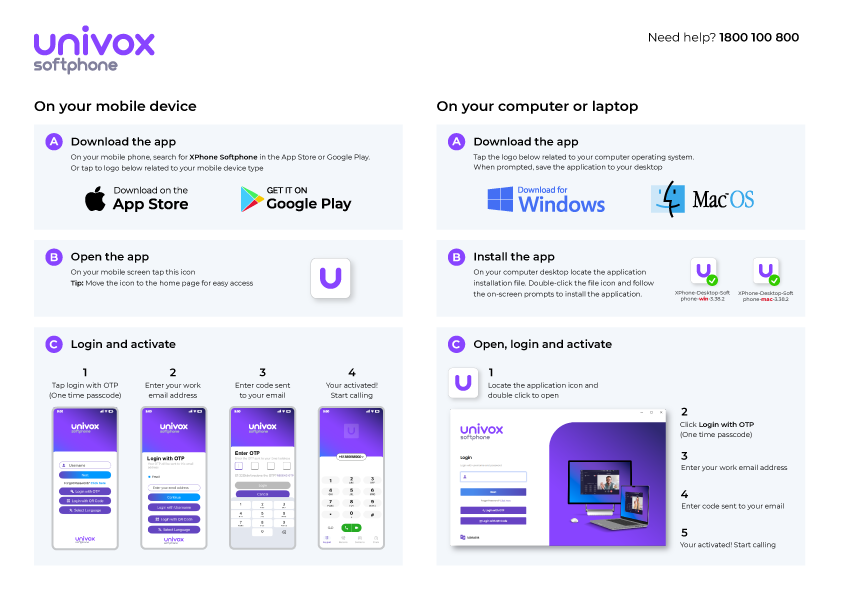
Softphone activation guide
Click the image below to view and download the softphone activation guide.
Softphone FAQ’s
What is a softphone?
A softphone is a software-based telephony application that lets you make and receive voice/video calls over the internet using VoIP technology — eliminating the need for physical desk phones.
Do I need specific hardware?
No. A stable internet connection and a compatible device (PC, tablet or smartphone) are all you need. A headset is recommended for desktop calling.
Will my business phone number be displayed on outbound calls?
Yes — The UNIVOX softphone ensures your business identity is displayed, maintaining professional communication everywhere you go.
Can I use my own softphone with UNIVOX?
The UNIVOX softphone application is free to download. The application has been designed to work with UNIVOX services and provides all the features and functions included in our Cloud PBX phone system.
Not all softphone applications will connect with the UNIVOX service. If you intend to use your own softphone application with UNIVOX we recommend that you contact our Help-desk to confirm the softphone’s suitability.
What does the softphone application cost?
The UNIVOX softphone application is free to download for mobile devcies from the App Store and Google Play and via our website if using our Windows or MacOS desktop softphone application.
To use the softphone application you will require an active subscription to our Softphone 10 plan or Softphone 20 plan.